
AI Workbench for Coding Agents
Run Claude Code, Codex, Gemini and other coding agents side by side, with governed actions, full run logs and saved answers.
These images are illustrations of the concept, not screenshots of the actual product.
Overview
Coding agents such as Claude Code, Codex and Gemini increasingly do real work in real repositories, but each one usually runs in its own terminal with its own conventions, and nobody else can see what it did. This concept imagines a single AI workbench in VibeControls where a developer starts, steers and reviews several agent sessions at once, on the machines where the code actually lives.
The workbench is designed as three panes. Tabs across the top hold one session each, with a New session option; a sessions list shows every run with a status dot and badges for the agent, its CLI or SDK mode and its state; and the chat pane shows the conversation, with code changes rendered as diffs. Beneath the message box, controls choose the model, the mode, the connected MCP servers, the autonomy level and the project context, with options to attach files or speak. A Session detail panel names the agent machine, profile, start time, message count and working directory, with Rename, Export and Terminate actions.
Governance is part of the conversation rather than an afterthought. In the illustrated flow, when an agent wants to run a consequential command, such as applying an infrastructure change to staging, it pauses on a governed-action permission card with Deny, Modify and Execute choices. Tool calls such as file reads appear inline, and each reply notes its token count and model.
After a run, a session detail view breaks it down with token and latency totals, a tool-call timeline that records approvals and who granted them, and the resulting file diff. A Bookmarks tab, shown on a phone, collects saved messages grouped by session so a useful answer is easy to find again.
The workbench sits at the center of the AI area, alongside human-approved plans, reusable contexts, provider keys, autonomy settings and credit limits.
What this concept shows
- Tabbed parallel sessions for different coding agents, with a New session option
- Sessions list with status dots and agent, mode and state badges
- Chat replies that show tool calls inline and render code changes as diffs
- Message controls for model, mode, MCP servers, autonomy level, context, attachments and voice
- Governed-action permission card with Deny, Modify and Execute choices
- Session detail with agent machine, profile, start time, message count and working directory
- Run logs with token and latency totals, a tool-call timeline and the applied file diff
- Mobile Bookmarks view of saved messages grouped by session
How it works
- Open the AI workbench and start a new session, choosing the agent machine, model, mode and project context.
- Describe the task in the chat and follow the agent's tool calls and proposed diffs as they appear.
- Run several sessions side by side in tabs and track their state in the sessions list.
- When an agent asks to run a governed command, deny it, modify it or let it execute.
- Open a finished session's logs to review token use, the tool-call timeline, approvals and the applied diff.
- Bookmark useful answers and find them later under Bookmarks, including from a phone.
Who it's for
- Developers working with coding agents day to day
- Tech leads reviewing agent-made changes
- Platform and DevOps engineers governing what agents may run
- Engineering managers tracking AI usage
- Security and compliance reviewers
Illustrations
4 illustrations of this concept. Select one to view it full size.
Three-Pane AI Workbench
This illustration shows the AI workbench with AI selected in the left navigation and a workspace and project selector at the top. Tabs across the page hold one session each for Claude, Codex and Gemini, plus a New session option. The Sessions pane lists four runs with status dots and badges naming the agent, CLI or SDK mode and a running, idle or exited state. The center pane shows a request to refactor a token refresh path while keeping its retry behavior, and the assistant's reply as a short diff with the removed line in red and the added line in green, followed by an activity indicator. Beneath the message box, chips set the model, mode, MCP servers, autonomy level and project context, next to Attach and Voice buttons. A Session detail panel lists agent, profile, start time, message count and working directory, with Rename, Export and Terminate.
Governed Action Permission in Chat
This illustration shows the Workbench tab of the AI area, beside a Bookmarks tab, with a Plan and AI toggle and an agent machine selector at the top right. The left pane has a New Session button, a session search and a list of sessions with status dots, relative times, agent and CLI badges and tags; the selected infrastructure session is outlined. The chat pane has its own session tabs, search and bookmark icons and a Manage AI providers button. A user asks the agent to apply an infrastructure plan for staging. The reply includes an expandable tool call that reads a configuration file, a diff of a staging variables file with added and removed lines, and a token count with the model name. Below, an amber Governed-action permission card states that the coding agent wants to run an auto-approved apply command and offers Deny, Modify and Execute.
AI Session Logs and Tool-Call Timeline
This illustration shows the detail page for one AI session, identified by a shortened session ID, with Chat, Logs, Stats and Config tabs and Logs active. Five tiles summarize sample totals for all tokens, input tokens, output tokens, the number of user requests and average latency. A Tool-call timeline lists entries with colored type pills and timestamps: the opening request to refactor retry logic, the agent being launched in an accept-edits permission mode, a file read and a file edit, a warning that a test command needed approval and was allowed by a named teammate, and a response reporting one applied edit and passing tests. Below, a file diff panel shows added and removed line counts and a unified diff with one added and one removed line highlighted. A Tools panel on the right lists the coding agent tool with a green status dot.
Saved AI Messages on Mobile
This illustration shows the AI area on a phone, with a menu button, an AI and Bookmarks breadcrumb and Workbench and Bookmarks tabs, Bookmarks active. A Saved messages heading with a bookmark icon explains that it gathers every AI chat message bookmarked across all sessions. Bookmarks are grouped into cards by session: each group shows the session name, most with a shortened session ID, the agent machine it ran on and an Open session link. Inside each group, bookmark cards show a label, such as a checklist, a formula or a root-cause note, or an italic unlabeled entry, followed by a message reference and relative time, with expand, edit and delete buttons. A bottom tab bar offers Home, Project, AI and Settings, with AI highlighted, showing how saved answers stay within reach away from the desk.
Topics
- AI coding agent workbench
- run Claude Code from the browser
- manage Codex and Gemini sessions
- coding agent governance
- approve agent commands
- AI tool-call timeline
- agent session logs and token usage
- multiple coding agents side by side
- MCP server selection for agents
- bookmark AI chat messages
- human in the loop coding agents
Related concepts
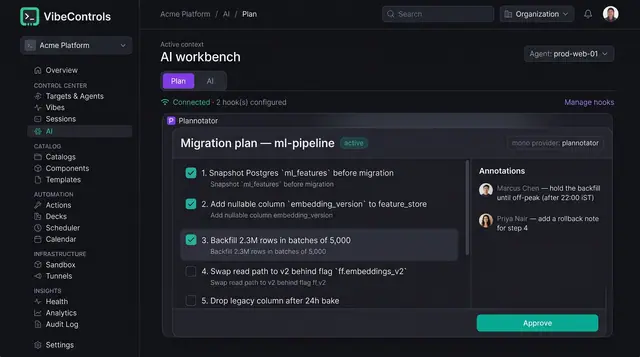
Human-Approved AI Plans
Coding agents propose numbered plans that people review, annotate and approve before a single step runs.
2 illustrations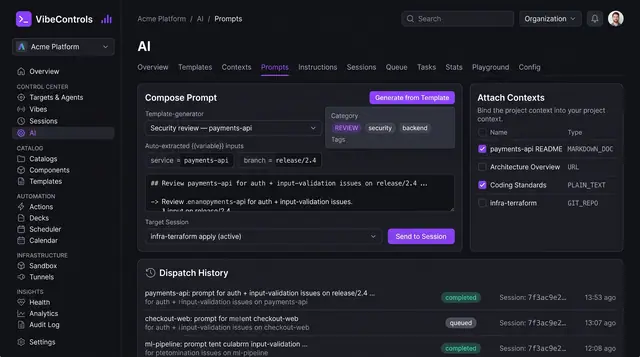
Reusable Prompts and Managed Contexts
Keep a library of parameterized prompts and curated context sources, then send them to any agent session in a click.
3 illustrations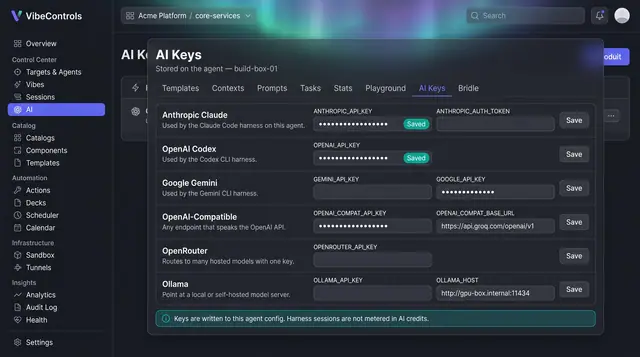
AI Provider Keys, Autonomy and Credits
Bring your own model keys, set how much each agent may do on its own, and see AI credit use before every message.
3 illustrations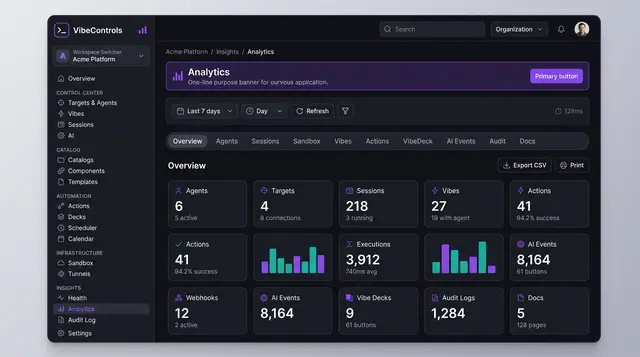
Usage Analytics and Audit Trail
Count what the fleet did over any period, then drill into a searchable record of who did what, where and with what result.
2 illustrations