
Reusable Prompts and Managed Contexts
Keep a library of parameterized prompts and curated context sources, then send them to any agent session in a click.
These images are illustrations of the concept, not screenshots of the actual product.
Overview
Coding agents do better work when they receive the same well-framed request and the right background every time. This concept treats prompts and context as managed workspace assets rather than text pasted from a personal notes file. It brings together a template-driven prompt composer with variables, a library of context sources such as documents, repositories, coding standards and endpoints, and an insert rail that puts saved prompts one click away inside chat.
Without this, teams retype the same review and debugging requests with small variations, paste context by hand that quickly goes stale, and have no record of which instructions went to which session. The design gives each prompt a category and tags, extracts its variables into fields, attaches only the context that is needed, and records every dispatch with its status.
The illustrations move through the AI area, whose tab bar runs from Overview, Templates and Contexts through Prompts, Instructions, Sessions, Queue, Tasks and Stats to Playground and Config. On the Prompts tab, a Compose Prompt card generates a prompt from a template, turns placeholders such as service and branch into inputs, lets the user tick contexts to attach and sends the result to a chosen running session, while Dispatch History shows each prompt as completed or queued. The Contexts view presents sources as cards with a type badge, a content preview, tags, a signed marker and edit, open, share and delete actions, plus bulk selection and a type filter. A table version of the same library adds the vibe each context belongs to and whether it is private or shared with that vibe, beside an Insert into chat rail of prompt cards with usage counts and a variable field.
Contexts are designed to be scoped to vibes, the project workspaces that group repositories, agents and notes, so the right background travels with the project. Prompts feed persistent terminal sessions and the AI workbench, and pair naturally with plan review when a request carries real risk.
What this concept shows
- A Compose Prompt card that generates a prompt from a template and extracts its variables, such as service and branch, into editable inputs
- Category and tag chips for organizing prompts in a shared library
- An Attach Contexts panel for binding selected sources to a prompt before it is sent
- A target-session picker with a Send to Session action for running agent sessions
- A Dispatch History list with completed or queued status, session reference and time for each prompt
- Context sources of several types, including markdown documents, git repositories, plain text, URLs, commands and API calls
- Per-context visibility, private or shared with a vibe, plus a signed badge and edit, open, share and delete actions with bulk selection
- An Insert into chat rail of saved prompt cards with categories, usage counts and a variable field
How it works
- Create context sources with New Context, choosing a type such as a markdown document, git repository, plain text or URL, and tag them.
- Keep the library tidy by filtering by type, sharing sources with a vibe or keeping them private, and bulk-deleting what is no longer needed.
- Open Prompts, pick a template and generate a prompt, then fill in the variables it extracted.
- Tick the contexts to attach, choose the target session and send the prompt.
- Follow the dispatch in Dispatch History as it moves from queued to completed.
- During a chat, insert a frequently used prompt card from the rail, setting its variable before sending.
Who it's for
- Developers who work with coding agents every day
- Tech leads and staff engineers standardizing reviews and coding practices
- Platform teams curating shared context for many projects
- On-call engineers reusing debugging and runbook requests
Illustrations
3 illustrations of this concept. Select one to view it full size.
Compose and Dispatch a Prompt
This illustration shows the Prompts tab of the AI area, one of eleven tabs that run from Overview and Templates through Contexts, Instructions, Sessions, Queue, Tasks, Stats and Playground to Config. The Compose Prompt card starts from a template generator, here a security review for a sample payments service, with a Generate from Template button. Variables the template needs are extracted automatically into inputs, shown with sample service and branch values, above an editable prompt body. A category chip and tags such as security and backend classify the prompt. A Target Session picker selects a running session, and Send to Session dispatches the prompt. To the right, an Attach Contexts panel lists sources with their types and checkboxes, two of them selected. At the bottom, Dispatch History lists recent prompts with completed or queued badges, a session reference and the time elapsed.
Managed Context Library
This illustration shows the Contexts view of the AI area, reached through AI-mode and Contexts tabs. A type filter set to all types sits beside a New Context button, and a selection bar offers Select all visible, a count of selected items and a Delete Selected action that repeats the count. The library is laid out as cards. Each card names a context source, carries a type badge such as markdown document, git repository, plain text or URL, and previews its content in a monospace block: the opening lines of a service's documentation, an infrastructure module definition, a short list of coding rules and a staging endpoint. Tags such as payments, backend, iac and standards sit below, one card shows a Signed badge, and every card offers edit, open, share and delete icons. A selected card is outlined to show it is part of the bulk selection.
Contexts Table and Insert-into-Chat Rail
This illustration presents the same library as a denser table inside AI tools, where a Plan and AI switch sits under the page title and the full AI tab bar runs from Overview to Config with Contexts selected. A search field, a type filter and a New context button sit above a table with Name, Type, Vibe, Visibility, Tags and Updated columns. Sample rows cover an architecture document, a command that reproduces a refund error, an API call payload and a set of house coding standards, each with a type badge, the vibe it belongs to, a visibility of Private or Shared with vibe, tags and a relative update time. A right rail titled Insert into chat holds prompt cards labeled with categories such as debugging, review and runbook, each showing how often it has been used and an Insert button, and a Variable field below fills in a value, such as an endpoint path, before insertion.
Topics
- prompt library for coding agents
- reusable AI prompts
- prompt templates with variables
- AI context management
- attach docs and repos to AI agents
- shared coding standards for AI
- send prompt to terminal session
- team prompt library
- LLM context sources
Related concepts
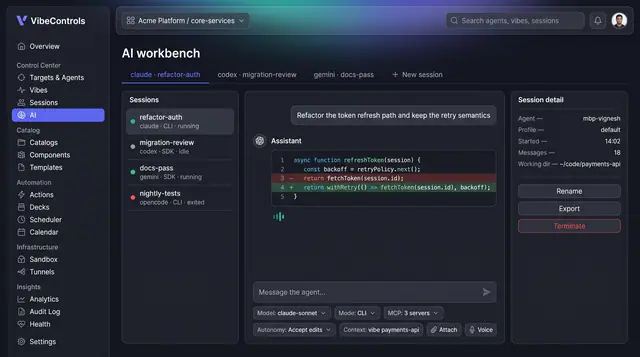
AI Workbench for Coding Agents
Run Claude Code, Codex, Gemini and other coding agents side by side, with governed actions, full run logs and saved answers.
4 illustrations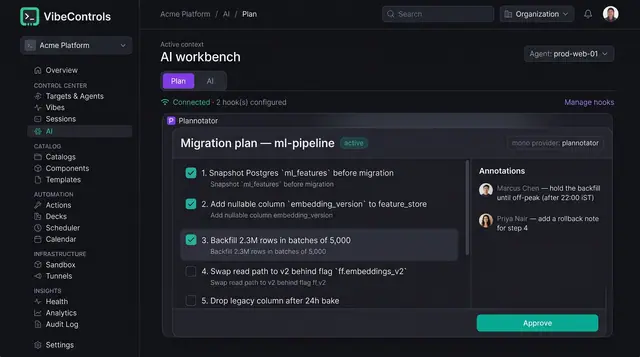
Human-Approved AI Plans
Coding agents propose numbered plans that people review, annotate and approve before a single step runs.
2 illustrations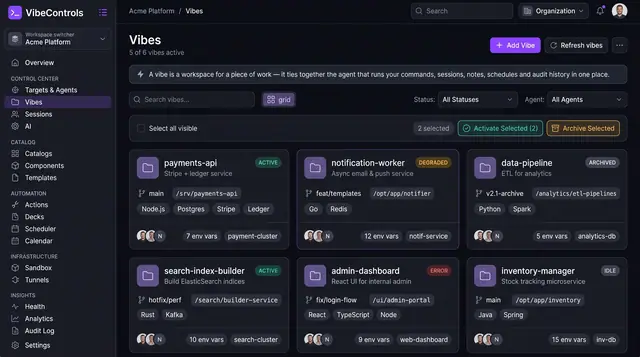
Project Workspaces and Notes
Vibes tie a piece of work to its repo branch, folder, bound agents, environment variables and notes, so context travels with it.
3 illustrations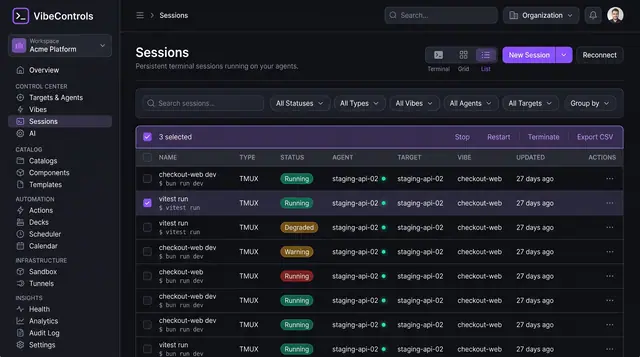
Persistent Browser Terminal Sessions
Keep long-running terminals alive on your own machines, then find, watch and control them from any browser.
2 illustrations