
Project Workspaces and Notes
Vibes tie a piece of work to its repo branch, folder, bound agents, environment variables and notes, so context travels with it.
These images are illustrations of the concept, not screenshots of the actual product.
Overview
A vibe is the VibeControls concept of a project context: a workspace-scoped container for one piece of work. As the list view itself explains, a vibe ties together the agent that runs your commands with the sessions, notes, schedules and audit history for that work. It maps to a folder on a target, can nest under a parent vibe, and carries its own branch, stack, environment variables and documentation.
The problem it solves is scattered context. The branch you were on, the folder on the server, the variables a service needs, the agent that should run it and the notes from last week's incident usually live in different tools. The concept collects them under a single name, so starting a session, handing work to a teammate or returning after a break begins from the same place.
The illustrated experience moves across three screens. The Vibes list presents each project as a card with a status badge (active, degraded, archived, error or idle), a short description, the current branch, the folder path on its machine, technology chips, member avatars, an environment variable count and the resource it is bound to. Search, status and agent filters and bulk actions to activate or archive selected vibes make the list workable at scale. The vibe overview opens one project with tabs for configuration, git, sessions, notes, docs, scorecard, catalogs, GraphQL, GitOps, security and related work. It shows a nested project tree, the agents and targets bound to the vibe with a default choice, and environment variables that are injected into every session started under the vibe, with secret values masked. The note editor then captures knowledge in markdown, with a title, a related vibe, tags, an edit and preview toggle, pinning and a workspace visibility switch.
Vibes are designed to be the hub that other parts of the product attach to. Sessions, AI chat, sharing, GitOps views, living docs and quality scorecards all hang off a vibe, which keeps both people and coding agents working from the same project context.
What this concept shows
- Vibe cards with status badge, description, branch, folder path, stack chips, members, env var count and bound resource
- Search, status and agent filters with bulk activate and archive actions
- Nested project tree that places a vibe inside a monorepo alongside its child vibes
- Bound agents and targets table with online and degraded states and a default binding
- Environment variables injected into every session under the vibe, with secrets masked and per-entry edit and delete
- Vibe actions for AI chat, sharing, creating new items, pausing, archiving and deleting
- Markdown note editor with edit and preview modes, related vibe, tags, pinning and workspace visibility
How it works
- Open Vibes to see every project card, then filter by status or agent or search by name.
- Select several vibes to activate or archive them in bulk, or add a new vibe.
- Open a vibe to review its project tree and the agents and targets bound to it, and set the default agent.
- Add or edit environment variables that every session under the vibe will receive, keeping secrets masked.
- Use AI Chat, Share or New to start work from the vibe, or pause, archive or delete it from the menu.
- Write a note in markdown, link it to the vibe, tag it, pin it and choose whether the workspace can see it.
Who it's for
- Developers switching between several services and branches in a day
- Freelancers and consultants keeping client projects separate
- Team leads who want project context and incident notes shared across the team
- Platform engineers standardizing environment variables across sessions
Illustrations
3 illustrations of this concept. Select one to view it full size.
Vibes List with Project Cards
This illustration shows the Vibes page with a count of how many vibes are active, an Add Vibe button, a Refresh vibes button and a menu. A banner defines a vibe as a workspace for a piece of work that ties together the agent running your commands with sessions, notes, schedules and audit history. A toolbar offers search, a grid layout, and status and agent filters. A selection bar with Select all visible, a selected count, Activate Selected and Archive Selected supports bulk changes. Six sample project cards follow, such as a payments service, a notification worker and a data pipeline. Each card shows a folder icon, the vibe name, a one-line description, a status badge reading Active, Degraded, Archived, Error or Idle, the current branch, the folder path on its machine, technology chips, member avatars, an environment variable count and the cluster or database it is bound to.
Vibe Overview: Context, Bindings and Variables
This illustration shows the overview of one sample vibe, a payments service marked Active, with a Back to Vibes link. The header offers AI Chat, Share and a New split button, and an open menu lists Pause vibe, Archive vibe and a red Delete vibe option. Tabs run across Overview, Config, Git, Sessions, Notes, Docs, Scorecard, Catalogs, GraphQL, GitOps, Security and Related. A Project context card shows a folder tree in which the vibe sits inside a monorepo with two child vibes beneath it. A Bound agents and targets table lists two coding agents, both online, the host one of them runs on with a Default badge, and the target each points at with its own status, one online and one degraded, plus a link to set the default for the vibe. An Environment Variables card, described as injected into every session under the vibe, lists key and value pairs with secret values masked behind a lock and dots, each with edit and delete icons.
Markdown Note Editor for a Vibe
This illustration shows an Edit Note dialog opened over the Notes tab of a vibe, whose note cards and charts are blurred in the background. The dialog has an Edit and Preview toggle and a close button. A title field holds a sample note about investigating webhook retries. Below it, a Related Vibe dropdown, marked optional, links the note to a project, and a Tags field shows removable chips such as incident, backend and postmortem, with space to add more. The large markdown body contains a summary heading, a findings list about missing retry jitter, consumer lag and duplicate rows on replay, and a fenced code block holding a sample log line. The footer has a checked Pin this note option, a Workspace visibility switch with a globe icon and a Save Note button, and a help button floats at the corner of the page.
Topics
- project workspace for developers
- development environment context
- per-project environment variables
- masked secrets in sessions
- bind agent to project
- monorepo project tree
- markdown project notes
- incident postmortem notes
- team knowledge notes
- developer project dashboard
Related concepts
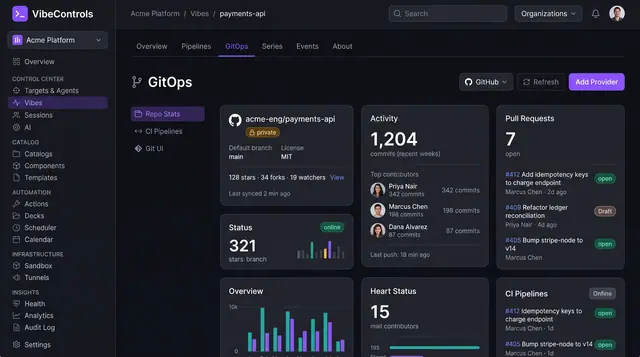
GitOps, Living Docs and Quality Scorecards
See a project's repository activity, its compiled documentation and a weighted quality score side by side, inside the vibe itself.
3 illustrations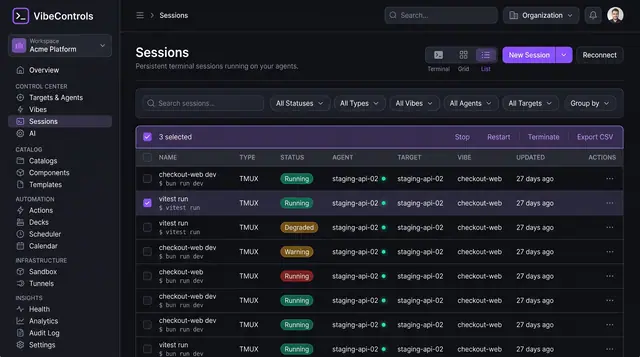
Persistent Browser Terminal Sessions
Keep long-running terminals alive on your own machines, then find, watch and control them from any browser.
2 illustrations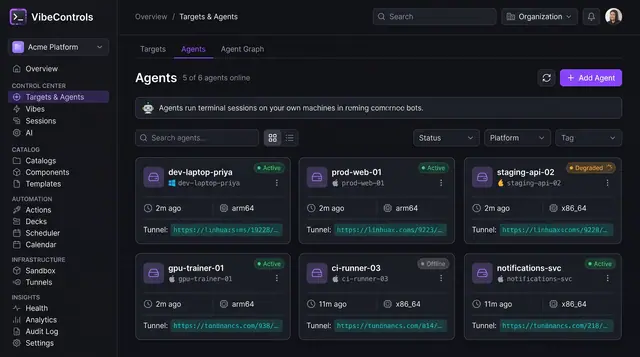
Agent Fleet and Agent Detail
See every agent's status, platform and tunnel at a glance, then drill into one agent to manage its plugins, sessions and logs.
2 illustrations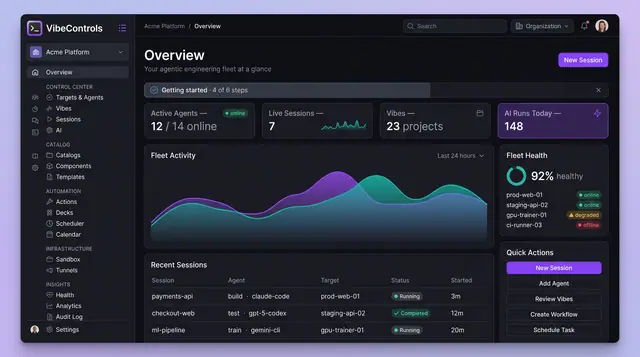
Fleet Mission Control Overview
One home screen for every agent, session, project and AI run in your engineering fleet, on desktop or on your phone.
2 illustrations