
Persistent Browser Terminal Sessions
Keep long-running terminals alive on your own machines, then find, watch and control them from any browser.
These images are illustrations of the concept, not screenshots of the actual product.
Overview
Developers leave terminals running everywhere: a dev server on a laptop, a test watcher on a staging box, a build on a runner machine. When a laptop sleeps or an SSH connection drops, that work and its context are easy to lose, and nobody else can see what is still running. This concept imagines those terminals as persistent sessions that run under a multiplexer such as tmux on the agents you install on your own machines, so they survive reconnects and can be picked up again from any browser.
The Sessions list is designed as the fleet-wide inventory. A table shows each session's name with the command it runs, its type, its status, the agent and target it runs on, the vibe it belongs to and when it last changed. Filters narrow the list by status, type, vibe, agent and target, a Group by option organizes the results, and a search box finds sessions by name. Selecting several rows opens a bulk bar to stop, restart or terminate them together or export the list as CSV. A view switch offers terminal, grid and list layouts, with New Session and Reconnect actions beside it.
Opening a session leads to a live terminal in the browser. The illustration shows a test run streaming its results, with a status strip above the output and a Session Info panel that lists the session's type, process ID, agent, vibe, working directory, start time and whether it starts automatically. Controls to stop the running command, restart or terminate the session and adjust its settings sit beside the terminal, while a share link and an open-in-new-tab action lead on to collaboration.
Sessions tie the rest of VibeControls together: they run on registered agents, belong to vibes and are the starting point for sharing a terminal and pairing live with teammates.
What this concept shows
- Fleet-wide sessions table with name, command, type, status, agent, target, vibe and last update
- Filters for status, type, vibe, agent and target, plus search and grouping
- Bulk actions to stop, restart or terminate selected sessions and export them as CSV
- Terminal, grid and list layouts, with New Session and Reconnect actions
- Live browser terminal streaming a running command's output
- Session Info panel with type, process ID, agent, vibe, working directory, start time and auto start
- Stop Command, Restart Session, Terminate Session and Settings controls
- Share link and open-in-new-tab actions in the session header
How it works
- Open Sessions to see every persistent terminal running on your agents.
- Filter by status, type, vibe, agent or target, or search by name, to find the right session.
- Select several sessions to stop, restart, terminate or export them in one step.
- Open a session to watch its live terminal output in the browser.
- Check the Session Info panel and use the stop, restart or terminate controls as needed.
- Create a share link or open the terminal in its own tab to keep working.
Who it's for
- Full-stack and backend developers
- DevOps and platform engineers
- Engineers working across several remote machines
- Freelancers and consultants switching between client environments
- Research teams running long jobs on shared machines
Illustrations
2 illustrations of this concept. Select one to view it full size.
Sessions List Across Agents
This illustration shows the Sessions page, subtitled as persistent terminal sessions running on your agents. At the top right, a view switch offers Terminal, Grid and List layouts, with List active, beside a New Session button with a dropdown and a Reconnect button. A filter bar holds a session search box and menus for statuses, types, vibes, agents and targets, plus a Group by option. Above the table, a highlighted bar reports three sessions selected and offers Stop, Restart, Terminate and Export CSV. Each row shows a session name with the command it runs beneath it, a tmux type, a status pill such as Running, Degraded or Warning, the agent with a green online dot, the target, the vibe, a relative update time and a row actions menu. The rows hold sample development-server and test-runner sessions.
Live Browser Terminal and Session Info
This illustration shows a single session opened in the browser, with Sessions highlighted in the navigation. The header names a sample test session and carries an agent chip, a tmux chip, a settings button, a more menu, a Share link button and an Open in new tab button. A status strip shows a green Running pill with icon buttons on the right. The terminal pane streams a test run: several test files pass with check marks and timings, one file reports skipped tests, and a summary lists passed files, passed and skipped tests, duration and coverage figures before the cursor returns to the shell. On the right, a Session Info panel lists status, type, process ID, agent, vibe, working directory, start time and an auto start setting, followed by Stop Command, Restart Session, Terminate Session and Settings buttons. All figures are sample data.
Topics
- persistent terminal sessions
- browser terminal
- web-based tmux
- remote terminal management
- manage tmux sessions in the browser
- monitor long-running dev servers
- terminal session dashboard
- reconnect to a remote shell
- multi-machine terminal control
- bulk stop and restart sessions
Related concepts
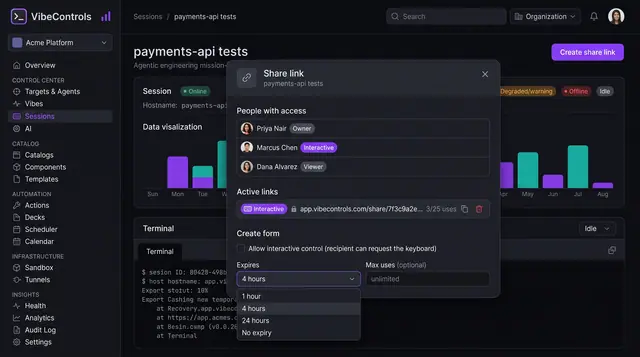
Session Sharing and Live Pairing
Invite teammates into a running terminal with expiring links, clear roles and a visible handover of control.
2 illustrations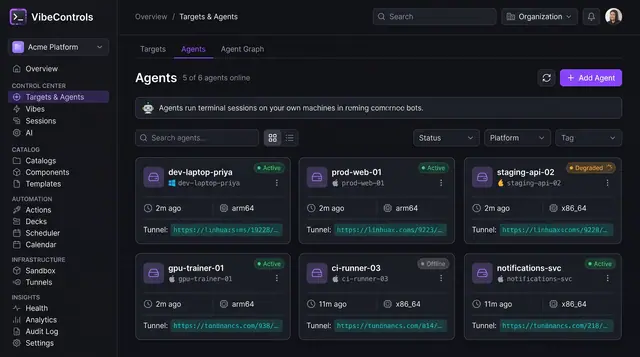
Agent Fleet and Agent Detail
See every agent's status, platform and tunnel at a glance, then drill into one agent to manage its plugins, sessions and logs.
2 illustrations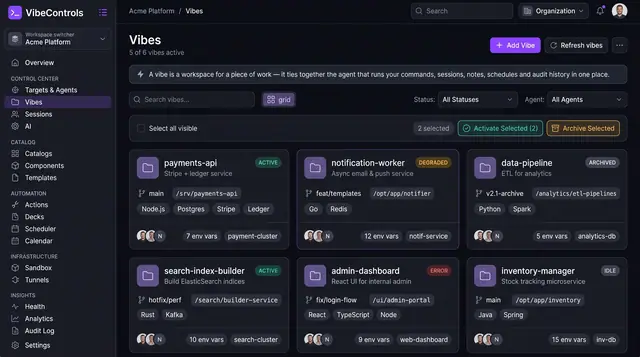
Project Workspaces and Notes
Vibes tie a piece of work to its repo branch, folder, bound agents, environment variables and notes, so context travels with it.
3 illustrations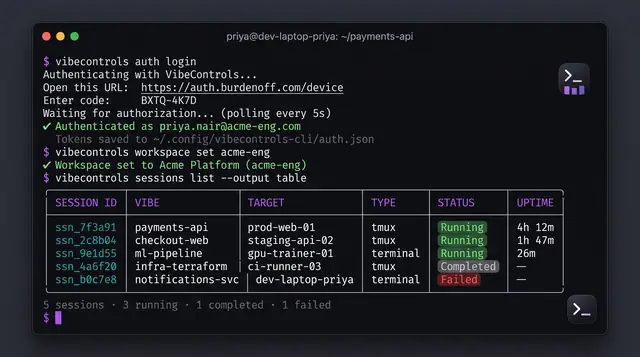
Command-Line and MCP Control
Sign in, pick a workspace and manage sessions from your terminal, or let an MCP-capable AI assistant do it for you.
2 illustrations