
Session Sharing and Live Pairing
Invite teammates into a running terminal with expiring links, clear roles and a visible handover of control.
These images are illustrations of the concept, not screenshots of the actual product.
Overview
Pairing on a terminal usually means screen sharing, pasting logs into chat, or handing someone SSH access they should not keep. This concept imagines sharing a running VibeControls session directly, with access that is scoped, time-limited and visible to everyone involved.
From a session, a Create share link action opens a Share link dialog. It lists the people who already have access and their roles, such as owner, interactive and viewer. An Active links section shows each existing link with its mode, a lock icon, a truncated address and a usage count against its limit, along with copy and revoke controls. A form beneath creates a new link: a checkbox allows interactive control so the recipient can request the keyboard, an Expires menu offers one hour, four hours, 24 hours or no expiry, and an optional maximum number of uses defaults to unlimited.
The person on the other end sees a focused, branded page with only the shared terminal. A banner states who has control and how many people are watching, and the terminal output streams live with a named cursor for each participant. A Collaborators panel separates the person in control from those viewing, shows each person's role and offers a Request Control button, while a Session Info card shows when the link expires, the viewer's own role and the connection status. A view-only indicator keeps the current mode obvious.
Together, the two screens describe a pairing model in which the owner decides who can watch, who can type and for how long, and the keyboard changes hands by request rather than by sharing credentials. It builds on persistent browser sessions and complements the workspace audit trail that records what happens across the fleet.
What this concept shows
- People-with-access list showing owner, interactive and viewer roles
- Active links with mode, usage count against a limit, and copy and revoke controls
- Option to allow interactive control so a recipient can request the keyboard
- Link expiry choices from one hour to no expiry, plus an optional use limit
- Branded shared-session page with a live terminal and named participant cursors
- Banner showing who has control and how many people are watching
- Collaborators panel separating control from viewing, with a Request Control button
- Session Info with the link's expiry time, the viewer's role and connection status
How it works
- Open a running session and choose Create share link.
- Review who already has access and which links are active, revoking any that are no longer needed.
- Decide whether recipients may request interactive control of the terminal.
- Set an expiry and an optional maximum number of uses, then create and copy the link.
- A collaborator opens the link and follows the live terminal alongside the other participants.
- When hands-on help is needed, the collaborator selects Request Control to ask for the keyboard.
Who it's for
- Developers pairing on bugs and builds
- Senior engineers mentoring teammates
- On-call responders bringing in help during incidents
- Educators and bootcamp instructors
- Consultants walking clients through their work
Illustrations
2 illustrations of this concept. Select one to view it full size.
Share Link Dialog with Roles and Expiry
This illustration shows a Share link dialog opened over the page of a sample test session, whose status pills, activity chart and terminal remain visible behind it next to a Create share link button. The dialog first lists People with access, with three sample collaborators tagged Owner, Interactive and Viewer. An Active links section shows one interactive link with a lock icon, a truncated address, a count of uses against its limit, a copy control and a red revoke control. A Create form follows, with a checkbox to allow interactive control that explains the recipient can request the keyboard. An Expires menu is open with options for 1 hour, 4 hours, 24 hours and No expiry, with 4 hours highlighted, and an optional Max uses field shows unlimited as its default hint. The dialog demonstrates access that is deliberate, limited and easy to revoke.
Shared Session with Live Pairing
This illustration shows the page a collaborator sees after opening a share link. There is no workspace navigation: a wordmark, a back button, the session name with a note of who shared it, a View Only indicator and a participant count run across the top. The terminal panel's banner states which person has control, reports two people watching and marks the view as view only. The terminal streams a debugging session for a sample web service, ending in a highlighted stack trace, while two labeled cursors show where each participant is pointing. On the right, a Collaborators panel lists the owner under Has control and two people under Viewing with Editor and Viewer roles, above a Request Control button. A Session Info card lists the link's expiry time, the viewer's role and a Connected status.
Topics
- share terminal session
- live terminal pairing
- expiring share link
- collaborative terminal
- read-only terminal sharing
- remote pair programming in the terminal
- request terminal control
- share a tmux session with teammates
- incident response pairing
- terminal access roles
Related concepts
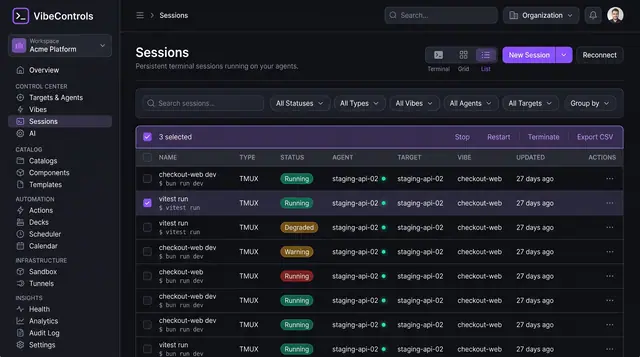
Persistent Browser Terminal Sessions
Keep long-running terminals alive on your own machines, then find, watch and control them from any browser.
2 illustrations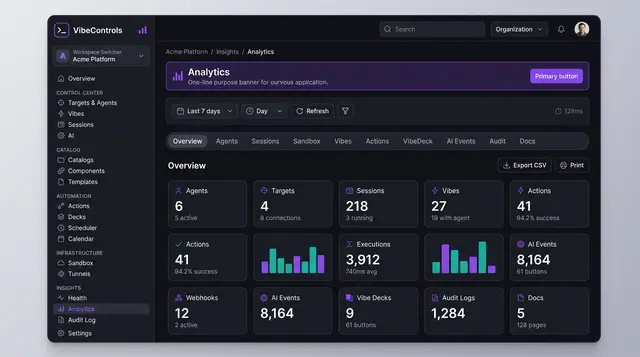
Usage Analytics and Audit Trail
Count what the fleet did over any period, then drill into a searchable record of who did what, where and with what result.
2 illustrations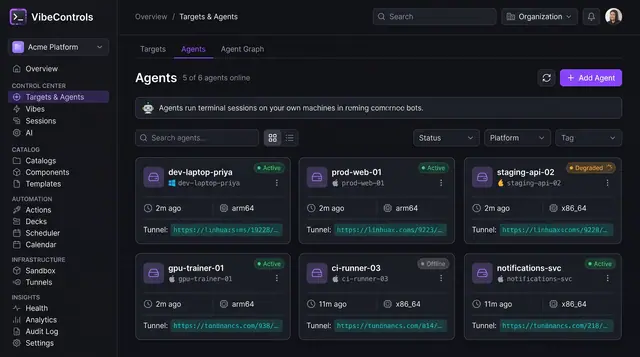
Agent Fleet and Agent Detail
See every agent's status, platform and tunnel at a glance, then drill into one agent to manage its plugins, sessions and logs.
2 illustrations