
AI Provider Keys, Autonomy and Credits
Bring your own model keys, set how much each agent may do on its own, and see AI credit use before every message.
These images are illustrations of the concept, not screenshots of the actual product.
Overview
This concept gathers three controls that govern how AI runs across a fleet: which model providers an agent can call and with whose keys, how much freedom a coding session has on a given machine, and how much of the built-in AI assistant a workspace consumes. Each is shown where it naturally belongs: provider keys on the AI page for an agent, permissions and autonomy on the agent's Security tab, and credits inside the assistant panel.
Teams increasingly mix providers and models, keep keys scattered across dotfiles, and hand agents full shell access by default. Spend is often invisible until an invoice arrives. The design makes each of these decisions explicit, sets them per agent, and puts the cost of each AI turn in front of the person asking.
The first illustration shows an AI Keys panel stored on a specific agent. Six provider rows cover Anthropic Claude for the Claude Code harness, OpenAI Codex, Google Gemini, OpenAI-compatible endpoints, OpenRouter and a local or self-hosted Ollama server, with masked key fields, base URL or host fields where needed and a Save button per row. A notice explains that keys are written to the agent's configuration and that harness sessions are not metered in AI credits. The second illustration shows the agent's Security tab: toggles for remote shell and script tasks and for remote file write and delete, an SSH configuration scan that rates hosts by risk, and a default session autonomy of Plan, Accept edits or Full auto, where Full auto requires confirmation. The third shows the AI Assistant over the dashboard, with a credits meter checked before every message and a line reporting what the last turn cost and which model answered.
Keeping keys on the agent means harness sessions run on a team's own provider accounts, while credits apply to the built-in assistant. Autonomy levels connect directly to plan review, and permission changes are recorded with who made them and when, in line with the fleet's audit trail.
What this concept shows
- A per-agent AI Keys tab covering Anthropic Claude, OpenAI Codex, Google Gemini, OpenAI-compatible endpoints, OpenRouter and Ollama
- Masked key fields with Saved badges, optional base URL or host fields and a Save action for each provider
- A notice that keys are written to the agent's own configuration and that harness sessions are not metered in AI credits
- Remote task permissions with separate toggles for shell and script tasks and for file write and delete, plus a last-changed record
- A default session autonomy per agent, Plan, Accept edits or Full auto, with Full auto flagged as requiring confirmation
- An SSH configuration scan listing hosts with a risk rating and a Run scan action
- An AI credits meter in the assistant panel showing the remaining monthly balance, checked before every message
- A per-turn charge line showing the credits used by the last reply and the model that produced it
How it works
- Open the AI page for an agent and go to AI Keys to enter provider keys, base URLs or hosts, saving each provider separately.
- Open the agent's detail page and select the Security tab.
- Decide whether the agent accepts remote shell and script tasks and remote file writes and deletes.
- Choose the default session autonomy: Plan, Accept edits or Full auto.
- Run the SSH configuration scan and follow up on any host marked for review.
- Use the AI Assistant from any page while watching the credits meter and the charge for each turn.
Who it's for
- Platform and security engineers who set agent guardrails
- Engineering managers keeping AI spend predictable
- Developers who bring their own provider subscriptions and keys
- Teams running local or self-hosted models
Illustrations
3 illustrations of this concept. Select one to view it full size.
Bring-Your-Own AI Provider Keys
This illustration shows an AI Keys panel opened over the AI page, with a subtitle stating that the keys are stored on a specific agent, here a sample build machine. Its tab row runs through Templates, Contexts, Prompts, Tasks, Stats, Playground, AI Keys and a further Bridle tab. Six provider rows each pair a name and a one-line purpose with labeled credential fields: Anthropic Claude for the Claude Code harness, OpenAI Codex for the Codex command-line harness, Google Gemini for the Gemini command-line harness, an OpenAI-compatible option for any endpoint that speaks that API, OpenRouter for reaching many hosted models with one key, and Ollama for a local or self-hosted model server. Saved keys appear masked with a Saved badge, base URL and host fields sit beside the key where needed, and every row has its own Save button. A notice at the bottom explains that keys are written to the agent's configuration and that harness sessions are not metered in AI credits.
Agent Security and Session Autonomy
This illustration shows the Security tab of an agent detail page. The header names a sample build machine with a Healthy badge, its operating system, agent version and profile, above tabs for Overview, Profiles, Plugins, Security, Sessions, Connection, Logs, Vibes and Notes. The Remote task permissions card states the agent's baseline of denying command, script and file tasks that did not originate on the machine itself, and two toggles set the exceptions: remote shell and script tasks, switched on and marked Enabled, and remote file write and delete, switched off and marked Denied. A line records who last changed these settings and when. Beneath it, an SSH configuration scan table lists hosts with their hostnames and a risk rating of Low or Review, with a Run scan button. A Session autonomy card offers three levels: Plan, read-only with no edits or commands; Accept edits, applying file edits automatically but asking before risky commands, which is selected; and Full auto, flagged as requiring confirmation.
AI Credits in the Assistant Panel
This illustration shows the AI Assistant as a side panel over the fleet dashboard, whose stat cards count agents, sessions, tunnels and AI tasks today while the charts behind the panel are dimmed. The panel has General and API calls tabs and a context chip naming the agent the conversation concerns. An AI credits card shows a progress bar and the remaining balance against a monthly allowance, in sample figures, with a note that the balance is checked before every message. In the sample exchange, a user asks why a build machine is showing as degraded, and the assistant answers that it missed its last three heartbeats and lists two likely causes: sustained high CPU and an expired gateway credential. A line beneath the conversation reports how many credits the last turn charged and which model answered, above an input for asking about the current page and an Export action.
Topics
- bring your own key AI
- BYOK LLM provider keys
- Claude Code API key management
- self-hosted Ollama models
- AI agent autonomy levels
- coding agent permissions
- remote shell permissions for agents
- AI credit metering
- AI usage limits
- SSH configuration security scan
Related concepts
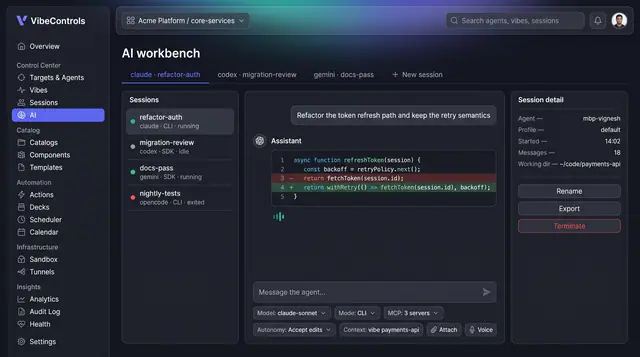
AI Workbench for Coding Agents
Run Claude Code, Codex, Gemini and other coding agents side by side, with governed actions, full run logs and saved answers.
4 illustrations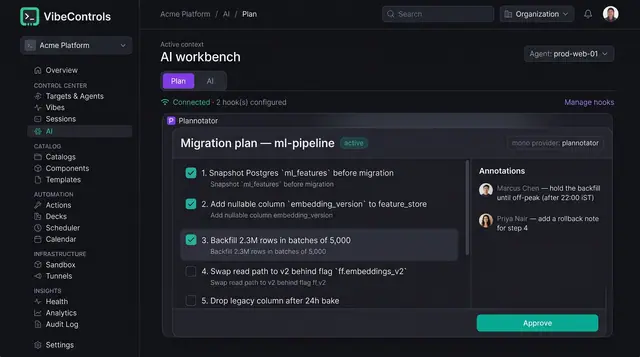
Human-Approved AI Plans
Coding agents propose numbered plans that people review, annotate and approve before a single step runs.
2 illustrations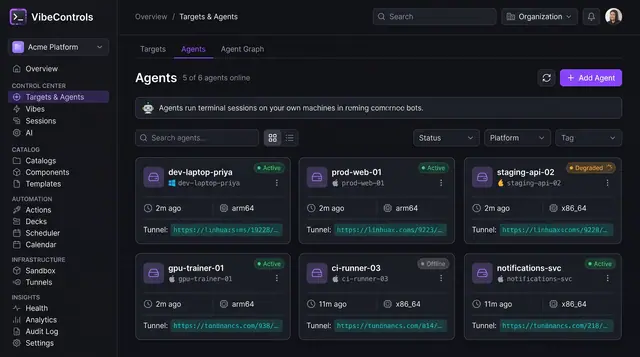
Agent Fleet and Agent Detail
See every agent's status, platform and tunnel at a glance, then drill into one agent to manage its plugins, sessions and logs.
2 illustrations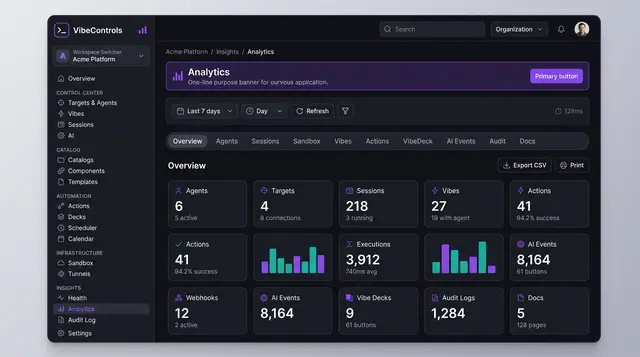
Usage Analytics and Audit Trail
Count what the fleet did over any period, then drill into a searchable record of who did what, where and with what result.
2 illustrations