
Editor and Browser Extensions
Send selected code to a coding agent from your editor, and check agents, sessions and localhost shares from a browser popup.
These images are illustrations of the concept, not screenshots of the actual product.
Overview
Editor and Browser Extensions carry VibeControls into the two windows developers keep open all day: the code editor and the web browser. The concept shows a VS Code extension that puts the fleet in the editor's sidebar and sends selected code to a coding agent, and a browser extension whose toolbar popup gives quick access to agents, sessions and a one-click localhost share, even in the middle of a pull request review.
The problem is the small interruptions that add up. Asking an agent about a function usually means copying code into another tool and explaining which project it belongs to, while checking whether a staging agent is healthy or sharing a local preview with a reviewer means switching to the dashboard. The design envisions these tasks happening where the developer already is, with the active vibe and workspace supplying the context.
In the editor illustration, a VibeControls panel in the activity bar lists coding agents with online or degraded badges, the developer's own running sessions with actions to stop, restart, open in a terminal or share, and a Shared with me group holding a teammate's view-only session. Collapsed sections for vibes, targets, tunnels, notes, sandboxes and AI sit below. Right-clicking a selection offers Send to AI, Save Selection as AI Context and Copy LLM Context URL. An AI Response panel then names the provider, the number of context items attached from the vibe and the token count, quotes the selection, explains the code in plain language and offers Insert and Copy.
In the browser illustration, the extension's popup opens over a pull request page. It combines a workspace switcher, counts of agents, sessions and vibes, an agent status list with last-seen times, a Share localhost field that turns a local port into a public link marked live, and buttons to copy an LLM context URL, start a session or open the dashboard. A floating pill on the page itself links the repository to its matching vibe and running sessions.
Both extensions are designed as lightweight views over the same workspace as the web app, so a session shared from the editor or a link created in the browser is meant to follow the product's usual sharing, tunnel and audit behavior.
What this concept shows
- Editor sidebar panel with sections for agents, sessions, vibes, targets, tunnels, notes, sandboxes and AI
- Per-session stop, restart, open-in-terminal and share actions, plus a Shared with me group for teammates' sessions
- Right-click Send to AI, Save Selection as AI Context and Copy LLM Context URL on selected code
- AI Response panel showing provider, attached context count and token count, with Insert and Copy actions
- Browser popup with a workspace switcher and counts of agents, sessions and vibes
- Agent status list with online, degraded and offline states and last-seen times
- Share localhost field that produces a public link with a live badge and a copy button
- In-page pill that connects a repository page to its vibe and running sessions
How it works
- Open the VibeControls panel in the editor to see which coding agents are online and which of your sessions are running.
- Select a block of code, right-click and choose Send to AI, or save the selection as AI context for later.
- Read the explanation in the AI Response panel, check the provider and attached context, then insert or copy the result.
- While reviewing a pull request in the browser, open the extension from the toolbar to see workspace counts and agent status.
- Enter a local address under Share localhost to get a public link for a reviewer, or copy an LLM context URL.
- Start a new session, or open the full dashboard when the task needs more than the popup.
Who it's for
- Developers who spend most of their day inside VS Code
- Code reviewers who want agent and session context while reading a pull request
- Frontend developers sharing a local preview with teammates or stakeholders
- Team leads checking fleet health without leaving the browser
Illustrations
2 illustrations of this concept. Select one to view it full size.
VS Code Panel with Send to AI
This illustration shows a code editor with the VibeControls entry selected in the activity bar. The side panel's Agents section lists three sample coding agents, two marked online and one degraded. The Sessions section splits into My Sessions, with two running sessions labeled by vibe and target plus stop, restart, open-in-terminal and share buttons, and Shared with me, where a teammate's session is marked view-only. Collapsed Vibes, Targets, Tunnels, Notes, Sandboxes and AI sections follow, each with a status dot. In the center, a refund-calculation function in a sample TypeScript file is selected, and a context menu offers Send to AI, Save Selection as AI Context and Copy LLM Context URL above the usual Cut and Copy. On the right, an AI Response panel lists the provider, three attached context items from the vibe and a token count, quotes the selection, explains what the function does and offers Insert and Copy buttons. The status bar shows the active vibe and workspace.
Browser Popup over a Pull Request
This illustration shows a desktop browser open on a sample pull request about adding idempotency keys to a refund flow, with tabs for its conversation, commits and changed files. The VibeControls icon in the toolbar carries a notification badge, and its popup is open on the right. At the top sit the wordmark, a workspace switcher and a settings button. Three tiles count agents, sessions and vibes, with Sessions highlighted. An Agent status list shows four sample machines as online, degraded or offline, each with how long ago it was last seen. A Share localhost section takes a local address, and a Share button produces a public link with a copy icon and a live badge. Below, Copy LLM URL, Start Session and Open Dashboard buttons sit together, and a confirmation notes that the LLM context URL was copied to the clipboard. On the page itself, a floating pill ties the repository to its matching vibe and its two running sessions.
Topics
- VS Code extension for coding agents
- send code selection to AI
- save code selection as AI context
- LLM context URL
- browser extension for developers
- share localhost link
- agent status browser popup
- terminal sessions in VS Code sidebar
- pull request review helper
- Chrome extension for developer fleet
Related concepts
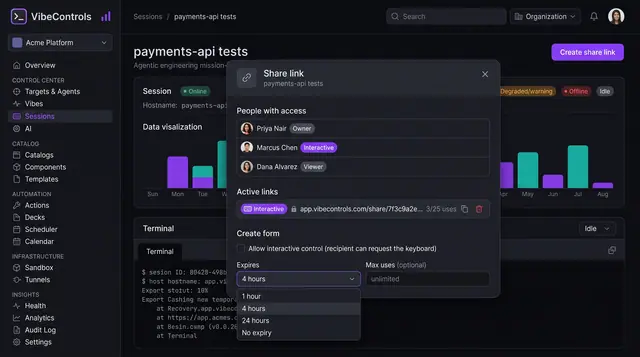
Session Sharing and Live Pairing
Invite teammates into a running terminal with expiring links, clear roles and a visible handover of control.
2 illustrations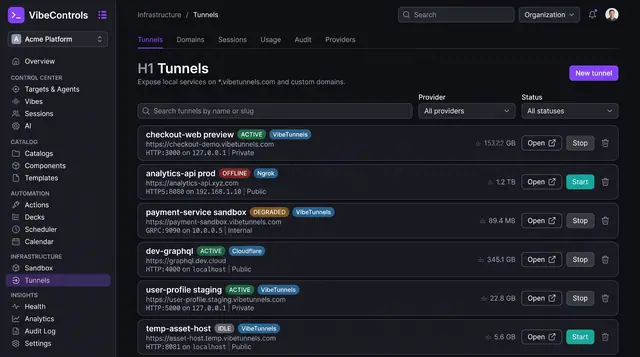
Managed Tunnels for Local Services
Publish a service running on any agent's machine at a managed URL, decide who can reach it and watch its traffic live.
3 illustrations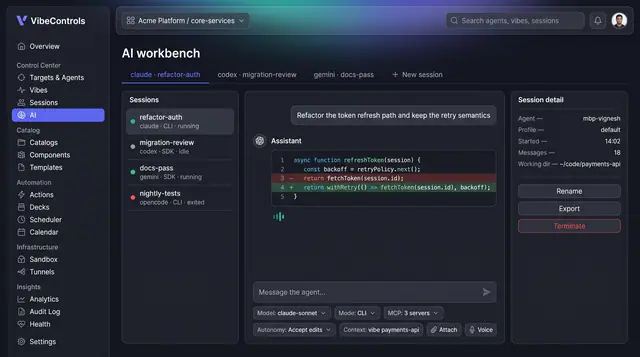
AI Workbench for Coding Agents
Run Claude Code, Codex, Gemini and other coding agents side by side, with governed actions, full run logs and saved answers.
4 illustrations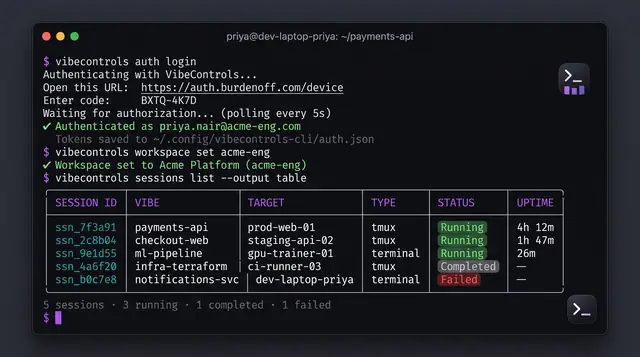
Command-Line and MCP Control
Sign in, pick a workspace and manage sessions from your terminal, or let an MCP-capable AI assistant do it for you.
2 illustrations