
Plugin Marketplace and Fleet Rollout
Browse plugins that extend every agent, check prerequisites and versions, then roll one out across chosen machines in a single step.
These images are illustrations of the concept, not screenshots of the actual product.
Overview
The plugin marketplace is the concept for how VibeControls agents gain new abilities. The agent that runs on each machine is designed to stay small, and everything else, from coding-agent providers and session runtimes to tunnels, version control, GitOps and security tooling, arrives as a plugin. The marketplace is where a team discovers those plugins, sees how widely each one is already used in the workspace, and installs them.
Installing a tool on one laptop is easy; keeping the same tool at the same version across laptops, staging servers, GPU machines and edge hosts is not. Versions drift, prerequisites are missing on some machines, and failed installs go unnoticed. The design treats a plugin as a fleet-level asset: every plugin page carries a per-agent install matrix, and rollout is a deliberate action over a chosen set of agents rather than a series of manual installs.
The illustrations follow that path. A catalog grid lists plugins with a type badge (provider, plugin or meta), a package identifier, a one-line description and counts of installs and agents, filtered by categories such as AI core, AI providers, session providers, tunnels, version control, API playground, GitOps providers, security providers and tools. A plugin detail page adds capabilities, prerequisites, a version history and the fleet install matrix, where each agent shows as healthy, outdated, failed or idle, with Upgrade, Logs or Install beside it. The Roll out to fleet dialog then lets you pick a version and select agents, showing for each whether its prerequisites are ready or still need to be installed with your approval.
The final illustration covers teams that need something the catalog does not have. An AI Builder screen lets you describe a plugin in plain language, pick its capability, generate a scaffold of manifest, handler, route and UI files, test it in a sandbox and publish it to the catalog, where it can be rolled out like any other plugin. Meta-plugins, such as the sample one that defines configuration and constraints for a workspace's agents, show how the same mechanism is designed to carry team-wide policy.
What this concept shows
- Plugin catalog with search by name, description or package and category filter chips
- Type badges that distinguish providers, standard plugins and workspace meta-plugins
- Install and agent counts on every card, with sorting by most installed
- Plugin detail with a capabilities checklist, prerequisites and a dated version history with a changelog link
- Fleet install matrix showing healthy, outdated, failed and not-installed agents with inline Upgrade, Logs and Install actions
- Roll out to fleet dialog with version choice, environment filter and per-agent prerequisite readiness
- Prerequisites that need elevated permissions are installed only with the operator's approval
- AI Builder that turns a plain-language description into a plugin scaffold, a sandbox test and a catalog publish
How it works
- Browse the plugin catalog, filter by category or search by name, and sort by popularity.
- Open a plugin to review its capabilities, prerequisites and version history.
- Use the fleet install matrix to see which agents run the latest version, which are outdated or failing, and which have nothing installed.
- Choose Roll out to fleet, pick a version and select agents, narrowing the list by environment such as staging.
- Check each agent's readiness note, approve any prerequisites that must be installed, and start the rollout.
- If no plugin fits, describe one in the AI Builder, generate the scaffold, test it in a sandbox and publish it to the catalog.
Who it's for
- Platform engineers who standardize tooling across machines
- DevOps engineers managing staging, production and edge hosts
- Developers extending their own agents with AI providers and integrations
- Plugin authors building internal integrations for their team
Illustrations
4 illustrations of this concept. Select one to view it full size.
Plugins Catalog
This illustration shows the Plugins page, introduced as the place to browse and install plugins that extend the workspace's agents. A wide search field accepts a name, description or package, and a row of filter chips covers all plugins, AI core, AI providers, session providers, tunnel, version control, API playground, GitOps providers, security providers and tools. A plugin count and a sort menu set to most installed sit above the grid. Each card shows the plugin name, a type badge reading provider, plugin or meta, a package identifier, a one-line description, install and agent counts, and Install and Details actions. Sample cards include a Claude Code agent provider, a core AI plugin for all agents, a workspace meta-plugin that defines configuration and constraints for its agents, and integrations for GitHub, Docker containers and Slack notifications. All counts are sample data.
Plugin Detail and Fleet Install Matrix
This illustration shows the detail page for a sample tunnel-provider plugin, Cloudflare Tunnel. The header carries the package identifier, a provider badge, a version selector set to the latest release, a one-line description, and two actions: Roll out to fleet and Copy install command. The left column holds an overview, a Capabilities checklist listing quick tunnels, named tunnels with DNS routing, per-hostname ingress rules and zero-downtime reconnect, and a Prerequisites box. There, a required command-line tool is flagged for auto-install with elevated permissions, the tunnel orchestrator plugin it depends on shows as installed, and outbound access to the provider's edge is listed. A Versions list gives release dates and a changelog link. On the right, a fleet install matrix with an agent filter and search lists agents with status pills for healthy, outdated, error and idle, the installed version, and Upgrade, Logs or Install buttons.
Roll Out a Plugin to the Fleet
This illustration shows the Roll out to fleet dialog opened over the plugin page. Its subtitle explains that the selected version will be installed across the chosen agents and that prerequisites are checked and installed with your approval. A version dropdown is set to the latest release. The Select agents section offers a Select all link and an environment filter set to staging, followed by a table with a checkbox, agent name, owner avatar, status pill and readiness note for each agent. In the sample, one online agent already has the prerequisite and is ready, another needs a tool installed with elevated permissions, a degraded GPU machine still needs the orchestrator plugin, and a production agent appears disabled and unselected. A Roll out to fleet button confirms the operation. The design makes readiness visible for every machine before anything is installed.
AI Builder for New Plugins
This illustration shows the AI Builder page within the AI area of the application. Its subtitle sets out the flow: describe a plugin, generate a complete scaffold, test it in a sandbox and publish it to the catalog. The left card, Describe your plugin, has a name field, a capability dropdown set to an integration or webhook, and a free-text box asking what the plugin should do; the sample request asks for a chat notification whenever a session on a production machine fails, including the last few log lines. Generate scaffold and Refine with AI Assistant buttons sit underneath. The right card, Scaffold, shows the generated slug, status pills for online, warning and idle states, and tabs for the manifest, handler, route and UI files. The manifest tab displays structured fields for name, display name, version, capability, entry point, route and hooks. Test in sandbox and Publish to catalog buttons lead to the next steps.
Topics
- agent plugin marketplace
- developer tool plugins
- fleet plugin rollout
- plugin version management
- install plugin across servers
- coding agent provider plugin
- tunnel provider plugin
- AI plugin builder
- internal developer platform plugins
- meta plugin configuration
Related concepts
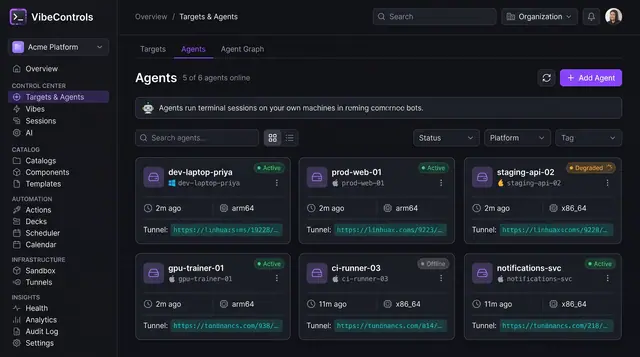
Agent Fleet and Agent Detail
See every agent's status, platform and tunnel at a glance, then drill into one agent to manage its plugins, sessions and logs.
2 illustrations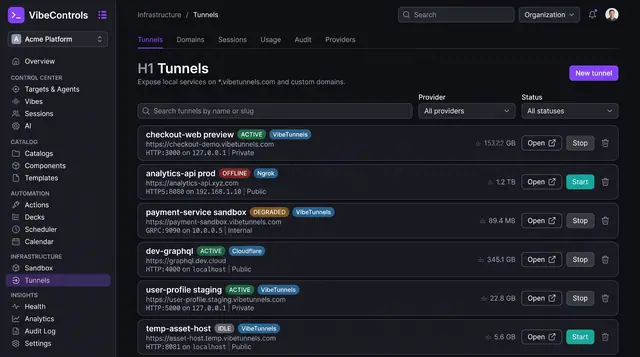
Managed Tunnels for Local Services
Publish a service running on any agent's machine at a managed URL, decide who can reach it and watch its traffic live.
3 illustrations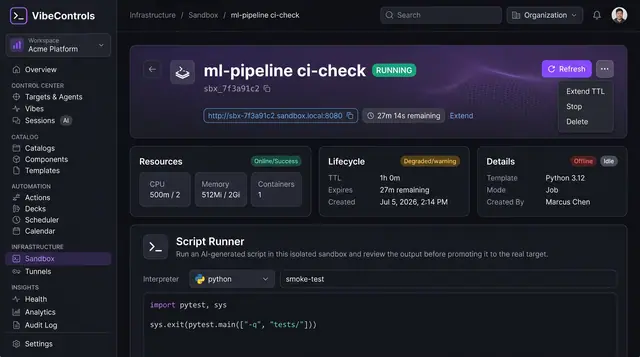
Sandboxed Script Runner
Try scripts written by coding agents in a short-lived, resource-capped sandbox and review the result before it touches a real machine.
1 illustration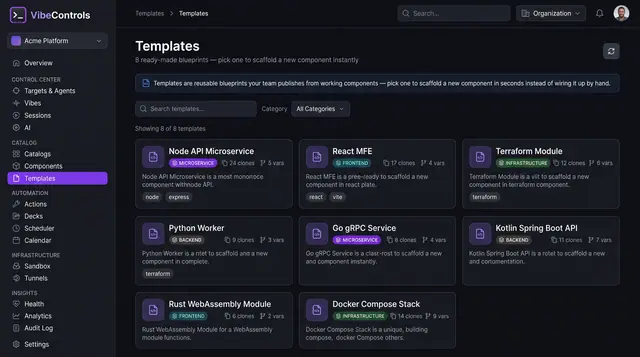
Golden-Path Templates and Scaffolding
Pick a team-approved blueprint, fill in a few variables and get a new component with its build, CI, ops deck and docs already wired.
2 illustrations